Thứ Hai, 13 tháng 5, 2013

Joomla: How to change template on a specific article

Is there a way to change the template on a specific article only? Note that it should work without linking the article to any menu.


Answers


If you want the template override not to depend on the menu position than the standard joomla way of assigning a different template to a menu will not work. You will need to get your hands dirty and write some custom code. You will need to use the article_id as a trigger for template switch.
I did something like that at work but don't remember now how exactly this is achieved. I will post my code here as soon as I locate it.
EDIT: Found the code :)
You need to edit the file /includes/application.php, specifically the getTemplate() method. At the end of this method, just before:
// Fallback template
if (!file_exists(JPATH_THEMES.DS.$template.DS.'index.php')) {
$template = 'rhuk_milkyway';
}
you can add your condition for applying a custom template, like so:
//CUSTOM TEMPLATE FOR THE ARTICLE 13
if (JRequest::getVar('id')=='13' && JRequest::getVar('option')=='com_content') {
$template = $custom_template_name;
}
This will apply the custom template which name is inside the $custom_template_name to article with id=13. You can also use it to apply a different template to components, like I did with simplecaddy:
//TEMPLATE FOR SIMPLECADDY
if (JRequest::getVar('option')=='com_caddy'){
$template = 'shop';
}

Joomla 2.5 Templates - $showRightColumn


As we continue to review the code in the Beez2 template, we come across the following code:
// check modules
$showRightColumn        = ($this->countModules('position-3') or $this->countModules('position-6') or $this->countModules('position-8'));
  1. Based upon the name of the variable, showRightColumn, it appears the template is trying to figure out whether or not to show the right column of the template.
  2. Based upon the function called, countModules, it would appear that showRightColumn is going to be the value of how many modules are shown in each of the listed positions.
Before testing further, we will assume that if neither position-3, position-6, or position-8 have any modules being loaded, then showRightColumn will have a value of 0. Because it has a value of 0, the template would not show the right column.

What is the value of $showRightColumn?

At this point in our testing, we have:
  • 2 modules loaded in position-3
  • 1 module being loaded in position-6
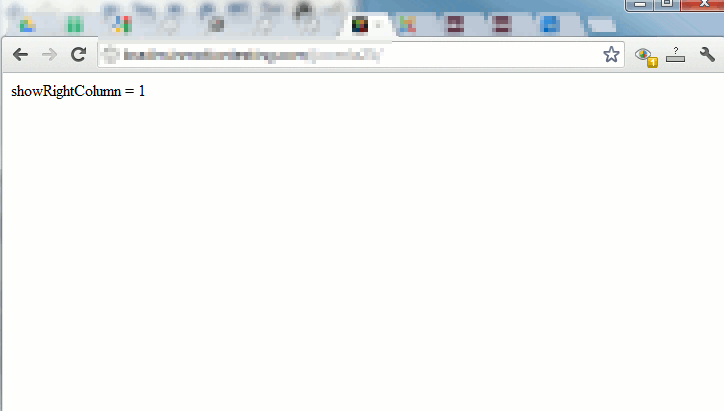
When we make an adjustment to the template file to show the value of $showRightColumn, we see the value is 1. This means that showRightColumn is not the count of modules being shown, but whether any modules are shown in the list of positions. If there are no modules being loaded, then the value will be 0. Otherwise, the value will be 1 if there are any modules being loaded.
Our Testing CodeThe results
// check modules
$showRightColumn        = ($this->countModules('position-3') or $this->countModules('position-6') or $this->countModules('position-8'));
echo "showRightColumn = $showRightColumn"; die();
showrightcolumn-equals-1

Creating a basic Joomla! template


Introduction

The purpose of this tutorial is to serve as an introduction to creating Joomla templates. It will cover the essential files and code needed to create a basic template. The code is presented so it can be cut and pasted with very little modification needed.

Setting up a directory structure

To make the most basic template, create a new folder in the templates folder. Name this folder after your template i.e. mynewtemplate.
Using your favourite text editor create the files index.php and templateDetails.xml. To keep things organized, make 2 new folders called images and css. Inside the css folder create a file called template.css.
Although it is fine to place all your CSS code directly in your index.php file to start, many web developers prefer to place their CSS code in a separate file that can be linked from multiple pages using the link tag. This may also shorten the loading time of your pages, since the separate file can be cached.
This is the most basic practical setup. Outline of folder and file structure:
  • mynewtemplate/
    • css/
      • template.css
  • images/
  • index.php
  • templateDetails.xml

Creating a basic templateDetails.xml file

The templateDetails.xml file is essential. Without it, your template won't be seen by Joomla!. The file holds key metadata about the template.
The syntax of the file is different for each Joomla version.
For Joomla 1.5, use the following:
<?xml version="1.0" encoding="utf-8"?>
<!DOCTYPE install PUBLIC "-//Joomla! 1.5//DTD template 1.0//EN" "http://www.joomla.org/xml/dtd/1.5/template-install.dtd">
<install version="1.5" type="template">
<name>mynewtemplate</name>
<creationDate>2008-05-01</creationDate>
<author>John Doe</author>
<authorEmail>john@example.com</authorEmail>
<authorUrl>http://www.example.com</authorUrl>
<copyright>John Doe 2008</copyright>
<license>GNU/GPL</license>
<version>1.0.2</version>
<description>My New Template</description>
<files>
<filename>index.php</filename>
<filename>templateDetails.xml</filename>
<folder>images</folder>
<folder>css</folder>
</files>
<positions>
<position>breadcrumb</position>
<position>left</position>
<position>right</position>
<position>top</position>
<position>user1</position>
<position>user2</position>
<position>user3</position>
<position>user4</position>
<position>footer</position>
</positions>
</install>
For Joomla 2.5 and later, use the following version. Change version="2.5" into the version of your Joomla! installation.
<?xml version="1.0" encoding="utf-8"?>
<extension version="1.6" type="template">
<name>mynewtemplate</name>
<creationDate>2008-05-01</creationDate>
<author>John Doe</author>
<authorEmail>john@example.com</authorEmail>
<authorUrl>http://www.example.com</authorUrl>
<copyright>John Doe 2008</copyright>
<license>GNU/GPL</license>
<version>1.0.2</version>
<description>My New Template</description>
<files>
<filename>index.php</filename>
<filename>templateDetails.xml</filename>
<folder>images</folder>
<folder>css</folder>
</files>
<positions>
<position>breadcrumb</position>
<position>left</position>
<position>right</position>
<position>top</position>
<position>user1</position>
<position>user2</position>
<position>user3</position>
<position>user4</position>
<position>footer</position>
</positions>
</extension>
So, as you can see, we have a set of information between markup tags (the <element>s). Your best approach is to cut and paste this into your templateDetails.xml file and change the relevant bits (such as <name> and <author>).
The <files> part should contain all the files that you use - you possibly don't know what they are called yet - don't worry, update it later. The <folder> element can be used to define an entire folder at once.
Leave the positions as they are - these are a common set so you will be able to switch easily from the standard templates.

Creating a basic index.php file

The index.php file becomes the core of every page that Joomla! delivers. Essentially, you make a page (like any HTML page) but place PHP code where the content of your site should go. The template works by adding Joomla code into module positions and the component section in your template. Anything added to the template will appear on all pages unless it is added to one of these sections via the Joomla CMS (or customised code).
This page will show the bare-bones code ready for you to cut and paste into your own design.

Begin

A Joomla 1.5+ template begins with the following lines:
<?php defined( '_JEXEC' ) or die( 'Restricted access' );?>
<!DOCTYPE html PUBLIC "-//W3C//DTD XHTML 1.0 Transitional//EN"
"http://www.w3.org/TR/xhtml1/DTD/xhtml1-transitional.dtd">
<html xmlns="http://www.w3.org/1999/xhtml"
xml:lang="<?php echo $this->language; ?>" lang="<?php echo $this->language; ?>" >
The first line stops naughty people looking at your coding and getting up to bad things.
The second line is the Document Type Declaration (DOCTYPE), which tells the browser (and web crawlers) which flavor of HTML the page is using. The doctype used above is XHTML 1.0, which is supported rather well by most modern browsers. You can also decide to use HTML5, a newer version of HTML that is largely backwards compatible, but contains many new features. To use HTML5, change the doctype to
<!DOCTYPE html>
You should be aware that this will not work well in Internet Explorer 8 or earlier without a hack. You might want to investigate this situation and your clients' wishes before deciding on which doctype you want to use.
The third line begins our HTML document and describes what language the website is in. A html document is divided into two parts, head and body. The head will contain the information about the document and the body will contain the website code which controls the layout.

Head

<head>
<jdoc:include type="head" />
<link rel="stylesheet" href="<?php echo $this->baseurl ?>/templates/system/css/system.css" type="text/css" />
<link rel="stylesheet" href="<?php echo $this->baseurl ?>/templates/system/css/general.css" type="text/css" />
<link rel="stylesheet" href="<?php echo $this->baseurl ?>/templates/<?php echo $this->template; ?>/css/template.css" type="text/css" />
</head>
The first line gets Joomla to put the correct header information in. This includes the page title, meta information as well as system JavaScript. The rest creates links to two system style sheets and to your own style sheet (if it's named template.css and is located in the css folder of your template directory. So if your temlate is in http://www.mysite.com/templates/my_template/ then the css files will go in http://www.mysite.com/templates/my_template/css/).

Body Section

<body>
<jdoc:include type="modules" name="top" />
<jdoc:include type="component" />
<jdoc:include type="modules" name="bottom" />
</body>
Amazingly, this will suffice! Yes, it's a very basic layout, but it will do the job. Everything else will be done by Joomla!. These lines, usually called jdoc statements, tell Joomla to include output from certain parts of the Joomla system. Note: you will need to ensure your menu is set to go into the "top" module position.

Module Positions

Above, the line which says name="top" adds a module position called top and allows Joomla to place modules into this section of the template. The type="component" line contains all articles and main content (actually, the component) and is very important. It goes in the centre of the template.
Note: You can add your own module lines anywhere you want in the body, but you have to add a corresponding line to the templateDetails.xml file which sits alongside the index.php of your template.

End

Finish it off - one last bit:
</html>

Custom Images

If you want to add any images to the template you can do so like this:
<img src="<?php echo $this->baseurl; ?>/images/stories/myimage.png" alt="Custom image" class="customImage" />
Here the baseurl variable will fill in the path to your template for you.

Custom CSS

You can add custom css like this:
<link rel="stylesheet" href="<?php echo $this->baseurl ?>/templates/<?php echo $this->template;?>/css/styles.css" type="text/css" />
Every file which is added must have a line in the templateDetails.xml file for the template.
This leaves a final file of:
<?php defined( '_JEXEC' ) or die( 'Restricted access' );?>
<!DOCTYPE html>
<html xml:lang="<?php echo $this->language; ?>" lang="<?php echo $this->language; ?>" >
<head>
<jdoc:include type="head" />
<link rel="stylesheet" href="<?php echo $this->baseurl ?>/templates/mynewtemplate/css/template.css" type="text/css" />
</head>
<body>
<jdoc:include type="modules" name="top" />
<jdoc:include type="component" />
<jdoc:include type="modules" name="bottom" />
</body>
</html>

Testing the template

Find the template in the Template Manager, select it and click Default to make it the default template.
Joomla 1.5 In Joomla! 1.5, your new template will show up immediately in the Template Manager, accessible via Extensions -> Template Manager.
Joomla 2.5+ In the Joomla! 2.5 series and later, you first need to tell Joomla! that you have created a new template. This feature is called Discover Extensions and can be accessed via Extensions -> Extension Manager -> Discover (i.e. the Discover tab). Click Discover (i.e. the Discover button) to discover your template, then select it and click Install to install it. Now your template should show up in the Template Manager (Styles), accessible via Extensions -> Template Manager.
Note you can create your template outside of Joomla and simply install it like any regular extension.
HINT: there are a couple of ways you can preview your index page as you put it together, either insert the styles into the head of the index page or directly link it to the style sheet you will be using temporarily. You can remove these links before packaging the file.

Packaging the template for installation

A directory with several loose files is not a convenient package for distribution. So the final step is to make a package. This is a compressed archive containing the directory structure and all the files. The package can be in ZIP format (with a .zip extension), in TAR-gzip format (with a .tar.gz extension), or in TAR-bz2 format (with a .tar.bz2 extension).
If your template is in a directory mytemplate/ then to make the package you can connect to that directory and use commands like:
  • tar cvvzf ../mytemplate.tar.gz *
  • zip -a -r ..\mytemplate.zip *.*

Note to Mac OS X users

Note to template developers using Mac OS X systems: the Finder's "compress" menu item produces a usable ZIP format package, but with one catch. It stores the files in AppleDouble format, adding extra files with names beginning with "._". Thus it adds a file named "._templateDetails.xml, which Joomla 1.5.x can sometimes misinterpret. The symptom is an error message, "XML Parsing Error at 1:1. Error 4: Empty document". The workaround is to compress from the command line, and set a shell environment variable "COPYFILE_DISABLE" to "true" before using "compress" or "tar". See the AppleDouble article for more information.
To set an environment variable on a Mac, open a terminal window and type:
export COPYFILE_DISABLE=true
Then in the same terminal window, change directories into where your template files reside and issue the zip command. For instance, if your template files have been built in a folder in your personal directory called myTemplate, then you would do the following:
cd myTemplate
zip -r myTemplate.zip *

Conclusion

You should now have created a template that works. It won't look like much yet. The best thing to do now is start experimenting with the layout.

How to put modules in Joomla articles

Want to learn more about how to build professional websites with Joomla? Then check out Joomlashack University, the #1 Joomla online training program in the world.

One of the handiest tools you can have in your Joomla toolbox is the ability to put the contents of a module right into the body of an article. (The article you're reading now is using this method. See the message in the box right above this sentence? That's actually content from a module being loaded right into this article.)
This can be a significant timesaver, since you can create a module one time in the Module Manager and then simply place it into any number of articles on your site.
That means you wouldn't have to set up that content individually in every article: you do the work once and then simply tell Joomla where you want that module to appear.
To show you how to do this, I'll show you an example of using this method to put a newsletter sign up form right in an article.
Here's a look at the end result:

qt_scrnshot_1

Here's how to do this:

1) In Joomla go to Extensions>Module Manager. Then click on New to create a new module.
2) Select Custom HTML from the list of available modules. (You can put other types of modules in articles, but for this example I'll show you how to do this with a custom HTML module.)
3) Name your module. In this example, I named the module "Newsletter sign up."
4) Set show title to "No."
5) For the module Position (and here's the key of this trick), put your cursor in the field next to "Position" and type in a new position name. In this example, I've called the new position "newsletter."
qt_scrnshot_2
6) For the menu assignment, you can leave it set to All.
7) In the Custom Output area, enter in whatever content you want to have in this module. In this example, I've got some code entered that's creating the iContact newsletter sign up form:
qt_scrnshot_3

8) When you're done, save the module.
9) Go into the Article Manager (Components>Article Manager) and open up an article where you'd like to put this module.
10) Wherever you want the module to be, type in this syntax (which is sometimes referred to as the "loadposition syntax") :
qt_scrnshot_5
Replace "newmoduleposition" with the name of the new module position you created when you typed in the new position name in the custom HTML module.
For my example, this is how my article with the newsletter module in it looks when opened up in Joomla:

qt_scrnshot_4

11) Save the article and check how it looks on the front of your site. That's it!
Now, whatever article on your site that you want to have this module appear in, all you have to do is enter in the loadposition syntax and it will appear.


Thứ Sáu, 11 tháng 1, 2013

Responsive magazine joomla templates ZT News 4

ZT News 4 is the fourth-generation news template we have designed for Magazine Joomla Website. ZT News 4 is a fully responsive joomla templates that can be used for a variety of purposes, from magazine, to bussines, to portfolio, to corporate or personal websites. ZT News 4 is based on ZO2 Framework - a free and powerful responsive joomla templates framework, meaning that it is the approach that suggests that design and development should respond to the userís behavior and environment based on screen size, platform and orientation.


ZT News 4 is built in with 8 preset styles so can be used for any type of website. With the color schemes,  you can easy to build unlimited preset styles. ZT News 4 comes with lots of built-in functionality which includes powerful admin panel (allowing you to set any color to elements such as backgrounds, links, text, menu links, etc), responsive slideshow, RTL language, Mega Menus, tons of shortcodes, K2 CCK supported and much more...

It comes with many features

Many awesome features!

Responsive Web Design

ZT News 4 is built to respond to the browser size of your site visitor. That way, your site will look great no matter what sort of device itís viewed on.
The basic idea of responsive web design is to have a layout that is not bound to a particular screen size, but instead adapts flexibly to different device resolutions, as the visitors resizes the browser the content dynamically moves for the best display experience.
Responsive web design
ZO2 Framework

ZO2 Framework

ZO2 Framework is a free, open-source, highly extensible, search-engine optimized Joomla Templates Framework featuring responsive web design, twitter bootstrap framework, styling for popular extensions, and a whole community behind it. ZO2 includes a ton of features for both developers and designers, and can be customized even without coding knowledge.

Cross-Browser Support

ZT News 4 looks great on the browsers people use: IE8, IE9, Firefox, Safari, Chrome, Mobile Safari, the Android Browser and Chrome for Android.
cross browser
Google Font

Choosing Your Fonts & Colors

  • Over 500 fonts offered
  • Unlimited combinations of colors
  • Background Images - You could also upload background images on per section bases instead of solid background color if you wish.

Tons of Shortcodes

We carefully handcrafted this joomla template with a strong focus on typography, usability and overall user-experience. ZT News 4 delivers the shortcodes you need in spades, letting you quickly and easily put together great content and sharp layouts.
Shortcode

Responsive joomla template ZT Inga

ZT Inga presents Joomla users with a tremendous amount of value thanks to its flexibility and customization options. ZT Inga is a fully responsive business joomla template that can be used for a variety of purposes, from business, to showcase, to portfolio, to corporate or personal blogs. This 100% responsive template features a top navigation bar and clear page-based hierarchy to make your readers’ browsing experience seamless.


ZT Inga is built in with 8 preset styles so can be used for any type of website. With the color schemes,  you can easy to build unlimited preset styles. ZT Inga comes with lots of built-in functionality which includes powerful admin panel (allowing you to set any color to elements such as backgrounds, links, text, menu links, etc), responsive slideshow, RTL language, Mega Menus, tons of shortcodes, K2 CCK supported and much more...

It comes with many features

Many awesome features!

Responsive Web Design

ZT Inga 4 is built to respond to the browser size of your site visitor. That way, your site will look great no matter what sort of device itís viewed on.
The basic idea of responsive web design is to have a layout that is not bound to a particular screen size, but instead adapts flexibly to different device resolutions, as the visitors resizes the browser the content dynamically moves for the best display experience.
Responsive web design
ZO2 Framework

ZO2 Framework

ZO2 Framework is a free, open-source, highly extensible, search-engine optimized Joomla Templates Framework featuring responsive web design, twitter bootstrap framework, styling for popular extensions, and a whole community behind it. ZO2 includes a ton of features for both developers and designers, and can be customized even without coding knowledge.

Cross-Browser Support

ZT Inga looks great on the browsers people use: IE8, IE9, Firefox, Safari, Chrome, Mobile Safari, the Android Browser and Chrome for Android.
cross browser
Google Font

Choosing Your Fonts & Colors

  • Over 500 fonts offered
  • Unlimited combinations of colors
  • Background Images - You could also upload background images on per section bases instead of solid background color if you wish.

Tons of Shortcodes

We carefully handcrafted this joomla template with a strong focus on typography, usability and overall user-experience. ZT Inga delivers the shortcodes you need in spades, letting you quickly and easily put together great content and sharp layouts.
Shortcode

Responsive joomla template ZT Ence

ZT Ence is a stunning grid-based joomla template that tells a story through imagery. The template creates a truly engaging experience by saturating the screen with your beautiful photos. You can easily customize the typography and the colors of each element of the layout, like navigation menu, footer, links, text, background and so on. Create custom galleries by selecting specific categories such as your portfolio, blog, Instagram and Flickr to create either all-in-one galleries or a category specific gallery. The template is also responsive, meaning it will look and work great on mobile or tablet devices as well. If you are an artist looking to showcase your latest work, or if you are a blogger looking to give your visitors a fun new way to browse your latest posts, then ZT Ence is great choice for you!


ZT Ence is built in with 2 preset styles: dark and light so can be used for any type of website. With the color schemes,  you can easy to build unlimited preset styles. ZT Ence comes with lots of built-in functionality which includes powerful admin panel (allowing you to set any color to elements such as backgrounds, links, text, menu links, etc), responsive slideshow, RTL language, Mega Menus, tons of shortcodes, K2 CCK supported and much more...

It comes with many features

Many awesome features!

Responsive Web Design

ZT Ence is built to respond to the browser size of your site visitor. That way, your site will look great no matter what sort of device itís viewed on.
The basic idea of responsive web design is to have a layout that is not bound to a particular screen size, but instead adapts flexibly to different device resolutions, as the visitors resizes the browser the content dynamically moves for the best display experience.
Responsive web design
ZO2 Framework

ZO2 Framework

ZO2 Framework is a free, open-source, highly extensible, search-engine optimized Joomla Templates Framework featuring responsive web design, twitter bootstrap framework, styling for popular extensions, and a whole community behind it. ZO2 includes a ton of features for both developers and designers, and can be customized even without coding knowledge.

Cross-Browser Support

ZT Ence looks great on the browsers people use: IE8, IE9, Firefox, Safari, Chrome, Mobile Safari, the Android Browser and Chrome for Android.
cross browser
Google Font

Choosing Your Fonts & Colors

  • Over 500 fonts offered
  • Unlimited combinations of colors
  • Background Images - You could also upload background images on per section bases instead of solid background color if you wish.

Tons of Shortcodes

We carefully handcrafted this joomla template with a strong focus on typography, usability and overall user-experience. ZT Ence delivers the shortcodes you need in spades, letting you quickly and easily put together great content and sharp layouts.